
Google Analytics 4 (GA4) is a free tool from Google that shows you exactly what's happening on your law firm's website: how many people visit each day, which pages they spend time on, where they came from (Google search, social media, a referral link), and whether they're visiting from a phone or a computer. It's powerful information, but logging into a separate analytics dashboard every time you want to check your numbers gets old fast.
That's where the LexGrow integration comes in. By connecting your GA4 account to LexGrow, all of that website data flows directly into the same dashboard where you manage the rest of your online marketing. No more switching between tabs, no more remembering another password. You see visits, top pages, and traffic sources right alongside your SEO metrics and keyword rankings.
Don't worry if this looks intimidating — we'll walk through it together, one step at a time. Most of our law firm clients complete this setup in about 15 to 20 minutes, even if they've never touched Google Cloud before.
What you'll need before you start
- A Google account — specifically the one associated with your law firm's Google Analytics 4 property. This is usually the same Google account your firm uses for Google Business Profile or Gmail.
- Access to Google Analytics — you can verify this by visiting analytics.google.com and checking that you can see your firm's website data.
- About 15 to 20 minutes of uninterrupted time. There are several steps, but each one is straightforward.
Step 1: Find your GA4 Property ID
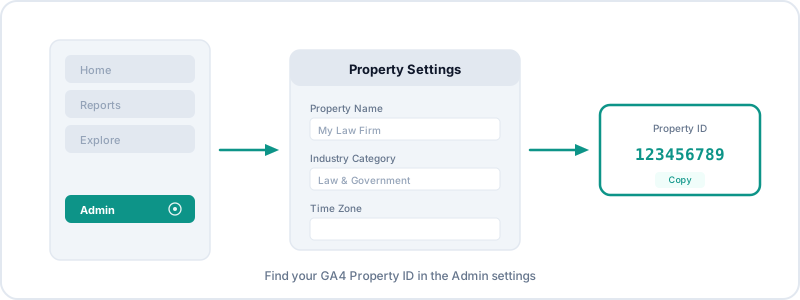
Your Property ID is a unique number that tells LexGrow which analytics account to pull data from. Here's how to find it:
- Open your web browser and go to analytics.google.com. Sign in with your Google account if prompted.
- Once you're in Google Analytics, look at the very bottom-left corner of the screen. You'll see a gear icon labeled "Admin." Click it.
- You'll land on the Admin page. In the middle column labeled "Property," click "Property Settings" (in some newer versions this is called "Property details").
- At the top of this settings page, you'll see your Property ID. It looks like a number with just digits — for example,
123456789. There are no dashes or letters, just a string of numbers. - Copy this number and paste it somewhere you can find it easily (a sticky note on your screen, a notes app, or just leave this tab open). You'll paste it into LexGrow in a later step.
If you see multiple properties listed, make sure you've selected the one for the website you want to track. The property name usually matches your website's name or URL.
Step 2: Create a Google Cloud project
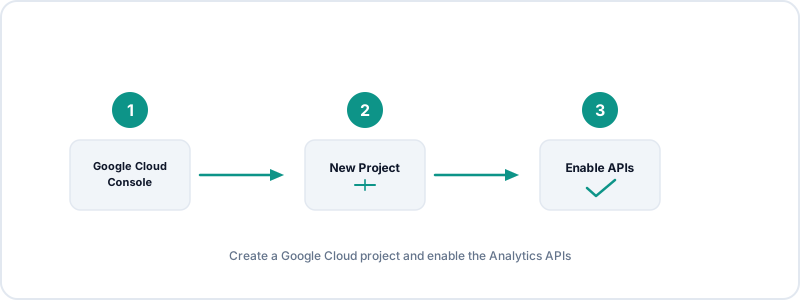
Google Cloud is a platform that lets different services talk to each other. You need to create a small project there so LexGrow has permission to read your analytics data. You won't be charged — everything we're doing here is within Google's free tier.
- Open a new browser tab and go to console.cloud.google.com.
- If you've never used Google Cloud before, you'll see a welcome screen with some terms of service. Simply check the box to agree and click "Agree and Continue."
- Near the top of the page, you'll see a project selector (it might say "Select a project" or show a default project name). Click it, then click "New Project" in the upper right of the popup.
- Give your project a name. Something simple like "LexGrow Analytics" works perfectly. You don't need to change the organization or location fields — just leave them as they are.
- Click "Create." Google will take a few seconds to set up your project.
- Once it's created, make sure this new project is selected in the top dropdown bar. You should see "LexGrow Analytics" (or whatever you named it) displayed at the top of the page.
- Now you need to turn on the right APIs. In the search bar at the very top of the Google Cloud Console, type "Google Analytics Data API" and press Enter.
- Click the result that says "Google Analytics Data API" and then click the blue "Enable" button. Wait a moment for it to activate.
- Go back to the search bar and search for "Google Search Console API." Enable that one too — you'll need it if you follow our Search Console setup guide next.
That's it for the Cloud project. You've just created a container and turned on the services LexGrow needs. Now let's create the credentials.
Step 3: Create a Service Account and download the key
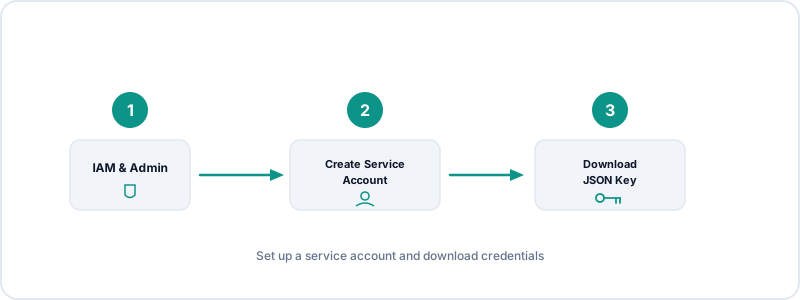
A "service account" is like a special-purpose Google account that LexGrow uses to read your data. It can't send emails, it can't browse the web — it can only do what you specifically allow it to do. Here's how to create one:
- In the Google Cloud Console, look at the left sidebar (or use the search bar) and navigate to "IAM & Admin" → "Service Accounts."
- Click the "+ Create Service Account" button at the top of the page.
- In the "Service account name" field, type something like "lexgrow-analytics". The system will automatically generate an email address below it — something like
lexgrow-analytics@yourproject.iam.gserviceaccount.com. Make a note of this email address — you'll need it in the next step. - Click "Create and Continue."
- The next screen asks about roles. You can skip this — just click "Continue" again.
- The third screen asks about granting users access. You can skip this too — just click "Done."
- You'll be taken back to the Service Accounts list. Click the service account you just created (the one named "lexgrow-analytics" or similar).
- Click the "Keys" tab at the top of the page.
- Click "Add Key" → "Create new key."
- Select "JSON" as the key type, then click "Create."
- A JSON file will automatically download to your computer. This file contains the credentials LexGrow needs. Keep it safe — don't share it publicly or email it to anyone. You'll paste its contents into LexGrow shortly.
The downloaded file will have a name like yourproject-abc123.json. Don't rename it or move it to a location you'll forget about.
Step 4: Grant the Service Account access to your GA4 property
Now you need to tell Google Analytics that it's okay for this service account to read your data. Think of it like adding a new team member who can view reports but can't change anything.
- Go back to analytics.google.com (the tab from Step 1).
- Click the gear icon (Admin) in the bottom-left corner.
- Under your property, click "Property Access Management."
- Click the blue "+" button in the top right, then select "Add users."
- In the email field, paste the service account email address from Step 3 — the one ending in
.iam.gserviceaccount.com. - Set the role to "Viewer." This is all LexGrow needs — just read-only access to your analytics data. It cannot modify anything in your account.
- Uncheck the "Notify new users by email" checkbox. Service accounts aren't real email addresses, so notifications would just bounce.
- Click "Add."
You should see the service account now listed among your property's users. The hard part is done.
Step 5: Connect to LexGrow
This is the moment everything comes together.
- Log into your LexGrow dashboard and navigate to the Analytics page.
- You'll see a "Connect Your Accounts" section with fields for different services.
- In the "GA4 Property ID" field, paste the number you copied in Step 1 (just the digits, like
123456789). - Now open the JSON file you downloaded in Step 3. You can use any text editor to do this: on Windows, right-click the file and choose "Open with" → "Notepad." On Mac, right-click and choose "Open with" → "TextEdit." You'll see a block of text that starts with
{and ends with}. - Select all the text in the file (press Ctrl+A on Windows or Cmd+A on Mac), copy it (Ctrl+C or Cmd+C), and paste it into the "Google Service Account JSON" field in LexGrow.
- Click "Save Credentials."
- Within a few seconds, you should see the Google Analytics status indicator turn green. That means data is flowing.
Troubleshooting
If something doesn't work right away, don't panic. Here are the most common issues and quick fixes:
- "Invalid JSON" error: This usually means you didn't paste the entire contents of the JSON file. Open the file again, make sure you select absolutely everything from the very first
{to the very last}, and paste it fresh. Watch out for extra spaces or line breaks that might have been added accidentally. - "Permission denied" error: Go back to Google Analytics → Admin → Property Access Management and double-check that the service account email (ending in
.iam.gserviceaccount.com) is listed as a Viewer. If it's not there, add it again following Step 4. - Data appears empty: This is normal if your GA4 property is brand new or was just set up. GA4 data typically runs 24 to 48 hours behind real time. If you connected everything today, check back tomorrow and you should see data populating.
- Wrong property data showing: If you have multiple GA4 properties, make sure you copied the Property ID for the correct website. Go back to Step 1 and verify the property name matches your firm's website.
Once everything is connected and the status shows green, you're all set. LexGrow will automatically pull your Google Analytics data on a regular schedule — you don't need to touch these settings again unless you switch Google accounts or create a new GA4 property. Your website traffic, visitor behavior, and top-performing pages will all appear right in your LexGrow dashboard, updated automatically. One less tool to log into, one more reason to check your dashboard every morning with your coffee.