
Google Search Console (GSC) answers a question that Google Analytics can't: how are people finding your website on Google in the first place? While Analytics shows what visitors do after they arrive, Search Console shows what happens before the click — which search queries bring up your site, what position you rank in for each query, and how often people click through to your pages versus scrolling past.
For a law firm, this is incredibly valuable information. You can see whether people are finding you by searching for "divorce attorney near me," "best personal injury lawyer in Dallas," or something you'd never expect. You can see if you're ranking on page one or page five for the terms that matter most to your practice. And when you connect Search Console to LexGrow, all of this search data sits right next to your website traffic and SEO metrics — giving you the complete picture of your firm's online visibility in one place.
If you already followed our Google Analytics setup guide, you're ahead of the game — you've already created the Google Cloud project and service account you'll need. If not, don't worry — we'll point you to the right steps along the way. This guide takes about 10 to 15 minutes.
What you'll need before you start
- A Google account — any Google account will work, but ideally the one associated with your firm's other Google services.
- Access to your website (or your web developer's contact information) — Google needs to verify that you actually own the site before it shares data with you.
- The service account JSON file from the Google Analytics setup guide. If you already followed that guide, you have this file on your computer. If you haven't, you'll need to complete Steps 2 and 3 of our Google Analytics Setup Guide first to create the Google Cloud project and service account.
- About 10 to 15 minutes.
Step 1: Add your website to Google Search Console
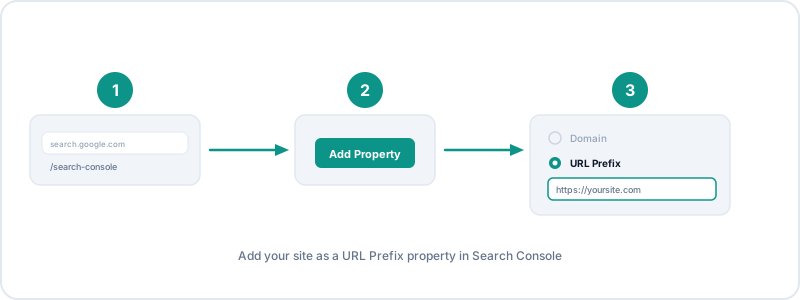
First, you need to tell Google which website you want to track.
- Open your browser and go to search.google.com/search-console.
- If this is your first time visiting Search Console, click "Start now" and sign in with your Google account.
- If you already have Search Console set up for your site, you may see your property listed. In that case, you can skip ahead to Step 3 — your site is already added and verified.
- To add a new site, click the dropdown at the top left of the page (it might show another property name or say "Search property") and select "Add property."
- You'll see two options: "Domain" and "URL prefix." Choose "URL prefix" — it's the simpler option and works perfectly for what we need.
- Enter your full website URL including
https://. For example:https://www.yourfirm.com. Make sure it matches exactly how people access your site — if your site uses "www," include it. If it doesn't, leave it off. - Click "Continue."
Google will now ask you to prove you own this website. That brings us to the next step.
Step 2: Verify you own the website
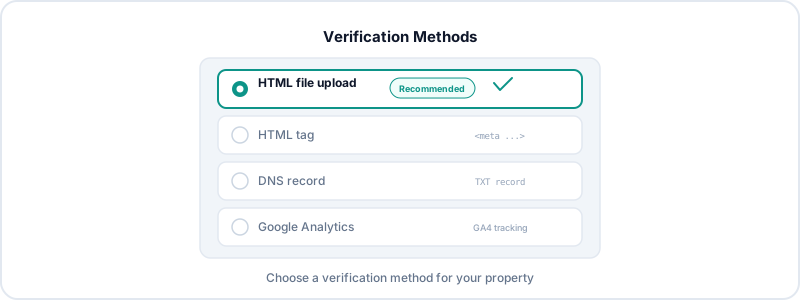
Google needs to confirm that you actually own or control the website before it shares search data with you. This is a security measure — you wouldn't want just anyone to be able to see your site's search performance. There are several ways to verify, and you only need to complete one of them:
- Google Analytics (easiest if you already have GA4 on your site): If Google Analytics is already installed on your website and you're signed in with the same Google account, Search Console can verify ownership automatically. Just select the "Google Analytics" verification method and click "Verify." This is the quickest option — it takes about five seconds.
- HTML file upload: Google gives you a small file to download. You (or your web developer) upload this file to the main folder of your website. Once it's there, click "Verify" in Search Console. This is a good option if you have a developer who can quickly place a file on your server.
- HTML tag: Google gives you a small snippet of code (a meta tag). Your web developer pastes it into the
<head>section of your website's homepage HTML. Once it's in place, click "Verify." - DNS record (most reliable, but slightly more technical): Google gives you a TXT record to add to your domain's DNS settings. If you manage your domain through a provider like GoDaddy, Namecheap, or Cloudflare, you can add this record in your domain's DNS management panel. This is the most reliable method because it stays verified even if you redesign your website, but it may require your IT person or domain administrator.
Not sure which to choose? If you have a web developer or IT person, send them this guide and ask them to handle the verification — they'll know which method works best for your setup. If you're doing it yourself and have Google Analytics already on your site, use the Google Analytics method.
Once verification succeeds, you'll see a green "Ownership verified" message. Note that it takes a few days for Search Console to start collecting and displaying data for your site, so don't be alarmed if the dashboard looks empty at first.
Step 3: Add the Service Account as a user
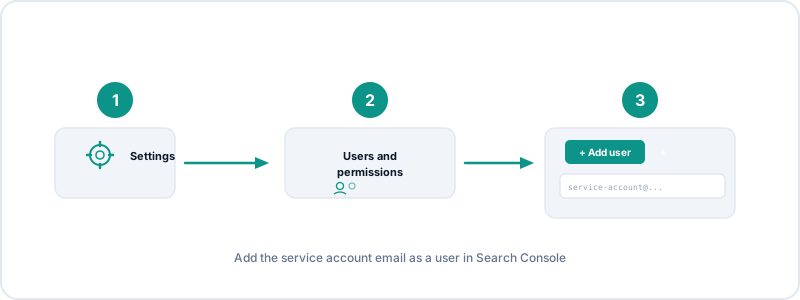
This step gives LexGrow permission to read your Search Console data. Most firms add our reporting account — there is nothing for you to create:
lexgrow-analytics@lexgrow-analytics.iam.gserviceaccount.com
The address ending in .iam.gserviceaccount.com is expected — Search Console accepts it in Users and permissions the same way as a normal email, and Google will not send mail to it.
Exception: if your firm has created its own Google Cloud service account and handed us the key, use that address instead — open the JSON file you downloaded and copy the "client_email" field. Either way, exactly one service account needs Full access.
- In Google Search Console, click "Settings" in the bottom-left sidebar (it has a gear icon).
- Click "Users and permissions."
- Click the "Add User" button.
- In the email field, paste the service account email shown above (or your own, if your firm supplied one).
- Set the permission level to "Full." Don't worry — in Search Console, "Full" means full read access. It allows the service account to view all your search data, but it cannot make changes to your site, submit removal requests, or alter any settings.
- Click "Add."
You should see the service account email now listed in the Users and permissions section. It will show the "Full" permission level next to it.
Step 4: Connect to LexGrow
Almost done — now let's connect everything in your LexGrow dashboard.
- Log into your LexGrow dashboard and navigate to the Analytics page.
- Look for the "Google Search Console Site URL" field in the Connect Your Accounts section.
- Enter the exact URL you used when adding your property in Search Console. This must match precisely — if you entered
https://www.yourfirm.comin Search Console, enter that exact same URL here. If you usedhttps://yourfirm.com(without www), use that instead. Even a small difference (www vs. no www) will cause a mismatch. - If you already pasted the Service Account JSON when setting up Google Analytics, you don't need to paste it again — the same credentials work for both Google Analytics and Search Console. If you haven't set up Google Analytics yet, open the JSON file in a text editor, select all the text, copy it, and paste it into the "Google Service Account JSON" field.
- Click "Save Credentials."
- The Search Console status indicator should turn green within a few seconds, confirming the connection is active.
Troubleshooting
Here are solutions to the most common issues:
- "No data available" message: This is completely normal for new Search Console properties. Google needs 2 to 3 days to start collecting data after you verify a site. If you just completed verification today, check back in a few days and data should begin appearing.
- URL mismatch error: The most common cause of connection problems. The URL you enter in LexGrow must match exactly what you used in Search Console — including
https://versushttp://, andwww.versus nowww.. Go back to Search Console, check the exact URL shown in the property selector, and copy it character by character. - Permission errors: Go back to Search Console → Settings → Users and permissions, and verify that the service account email is listed with "Full" permission. If it's not there, add it again following Step 3 above.
- "Invalid credentials" error: If you didn't set up Google Analytics first, make sure you pasted the complete JSON file contents. Also verify that the Google Search Console API is enabled in your Google Cloud project (see Step 2 of the Google Analytics guide).
With both Google Analytics and Search Console connected to LexGrow, you now have the complete picture of your law firm's Google presence. Search Console shows you how people find you — which queries they use, where you rank, and how often they click. Google Analytics shows you what they do once they arrive — which pages they visit, how long they stay, and whether they take action. Together, these two data sources tell the full story of your online visibility, and LexGrow puts it all in one place so you can see the story at a glance. No more logging into two separate Google tools just to understand how your website is performing.