
When most people think about search engines, Google comes to mind first — and for good reason, since it handles the majority of searches worldwide. But Bing is more important than many law firm owners realize. Bing powers search results for Microsoft Edge (the default browser on every Windows computer), Windows search (when people search from their taskbar or Start menu), Yahoo Search, and increasingly, Microsoft Copilot — the AI assistant built into Windows, Office, and Edge. Many corporate offices and government agencies use Microsoft products exclusively, which means their employees are searching on Bing by default, often without even realizing it.
For law firms, this matters. If a corporate HR manager searches for "employment lawyer" from their work computer, there's a good chance that search goes through Bing. If someone uses Copilot to ask "find me a real estate attorney near me," Bing is powering that answer. Ignoring Bing means ignoring a meaningful slice of potential clients — especially in the corporate and government sectors.
The good news? Setting up Bing Webmaster Tools is actually simpler than Google's setup. There's no Cloud Console, no service accounts, no JSON files. You just need a Microsoft account and about 10 minutes. Let's get started.
What you'll need before you start
- A Microsoft account — this is any Outlook.com, Hotmail.com, Live.com, or Microsoft 365 login. If you use Outlook for email or have a Microsoft Office subscription, you already have one. If not, you can create a free account at outlook.com in about two minutes.
- Access to your website for verification (or your web developer's help), unless you're importing from Google Search Console.
- About 10 minutes.
Step 1: Add your site to Bing Webmaster Tools
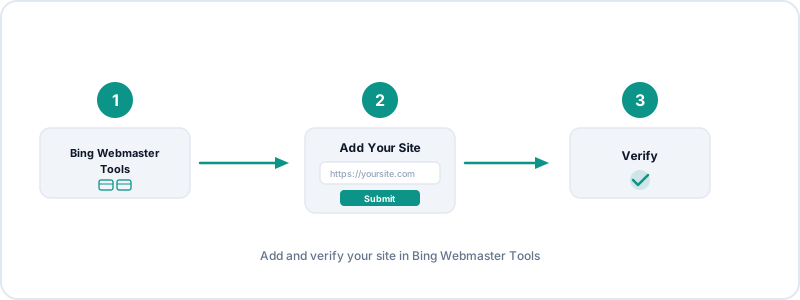
First, let's get your website registered with Bing.
- Open your browser and go to bing.com/webmasters.
- Click "Get Started" or "Sign In" and log in with your Microsoft account.
- Once you're in, Bing gives you two options for adding your site. Choose the one that fits your situation:
Option A: Import from Google Search Console (recommended)
If you already have Google Search Console set up (whether through our earlier guide or on your own), this is by far the fastest path:
- Click the "Import" button on the left side of the screen.
- Bing will ask you to sign in with your Google account. Go ahead and sign in — you're just giving Bing permission to see which sites you've verified in Google Search Console.
- Select the site you want to import and click "Import."
- Bing will automatically pull your site information and verify ownership based on your existing Google verification. That's it. Your site is added and verified in one step. You can skip ahead to Step 2.
Option B: Add your site manually
If you don't have Google Search Console set up yet, or prefer to add the site directly:
- Click the "Add your site manually" option on the right side.
- Enter your full website URL (for example,
https://www.yourfirm.com) and click "Add." - Bing will ask you to verify that you own the website. It offers three methods:
- XML file: Download a small XML file from Bing and have your web developer upload it to your website's root folder. Then click "Verify" in Bing Webmaster Tools.
- HTML meta tag: Copy a meta tag from Bing and have your web developer paste it into the
<head>section of your homepage. Then click "Verify." - CNAME record in DNS: Add a CNAME record to your domain's DNS settings. This is similar to the DNS verification method in Google Search Console. Your IT person or domain administrator can handle this.
Once you've completed verification through any of these methods, you'll see a confirmation message and your Bing Webmaster dashboard will start populating with data over the next day or two.
Step 2: Get your Bing Webmaster API Key
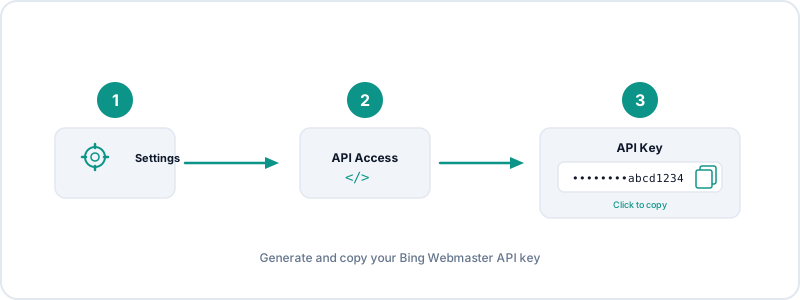
Unlike Google's setup (which requires a Cloud project, a service account, and a JSON key file), Bing keeps things simple — all you need is a single API key. Here's how to find it:
- Make sure you're logged into Bing Webmaster Tools and your site is verified (you should see your site's dashboard with data or a "waiting for data" message).
- Look for the gear icon (Settings) — in the current version of Bing Webmaster Tools, you'll find it in the top-right area of the navigation bar. Click it.
- In the settings menu, look for "API access" or "API key." Click it.
- You'll see a button that says "Generate" or "View" next to the API key field. Click it to reveal your API key.
- Copy the key. It's a long string of letters and numbers. Make sure you copy the entire thing — you can use the copy icon next to it if one is available, or select all the text and press Ctrl+C (Cmd+C on Mac).
That's all you need from Bing. One key, no extra files, no extra accounts. Keep this key handy — you'll paste it into LexGrow in the next step.
Step 3: Connect to LexGrow
The final step is quick and painless:
- Log into your LexGrow dashboard and navigate to the Analytics page.
- In the Connect Your Accounts section, find the "Bing Webmaster API Key" field.
- Paste the API key you copied in Step 2.
- Click "Save Credentials."
- The Bing Webmaster status indicator should turn green within a few seconds, confirming that LexGrow can now access your Bing search data.
That's it. Three steps, no Cloud Console, no JSON files, no service accounts. Bing is by far the easiest of the three search integrations to set up.
Troubleshooting
If you run into any issues, here are the most common fixes:
- Can't find the API access option: Bing Webmaster Tools updates its interface periodically. If you don't see "API access" under the gear icon, try looking under Settings in the left sidebar, or use the search/help feature within Webmaster Tools to search for "API key." Some versions place it under a "Developer" or "Advanced" section.
- API key not working: Double-check that you copied the complete key with no extra spaces at the beginning or end. If you're still having trouble, go back to Bing Webmaster Tools and try generating a new key. The old one will be deactivated and the new one should work immediately.
- No data showing in LexGrow: Like Google, Bing data can take 24 to 48 hours to appear after you first connect. If you just set everything up, check back tomorrow. If it's been more than 48 hours and you still see no data, verify that your site is fully verified in Bing Webmaster Tools (look for a green checkmark or "Verified" label next to your site).
- Site not verified in Bing: If you chose the manual verification method and it didn't work, try a different method. The easiest fallback is to import from Google Search Console (Option A in Step 1) if you have Google set up.
With Google Analytics, Search Console, and Bing Webmaster Tools all connected, LexGrow gives you a single dashboard view of your firm's entire search presence — no more switching between three different tools. You can see how people find you on Google, how they find you on Bing, and what they do once they arrive at your website. It's the complete picture, updated automatically, waiting for you every time you log in. If you have questions about any of the data you're seeing or want help interpreting your search performance, our support team is always happy to walk you through it.